Onboard Catalyst SD-WAN Manager to Security Cloud Control
Use this procedure to onboard Catalyst SD-WAN Manager to Security Cloud Control platform.
Note | After you onboard Catalyst SD-WAN Manager to Security Cloud Control, security operations (management of policies, objects, and profiles) can be carried out only from Security Cloud Control. The version control feature is not supported in Security Cloud Control. |
Before you begin
Note | Use a publicly resolvable URL or public IP address to access Cisco Catalyst SD-WAN Manager. The Cisco API Gateway must be able to reach the address from the Cisco cloud environment. Internal-only URLs and private IP addresses prevent the API Gateway from connecting and cause onboarding and other cloud services to fail. |
-
You must have Smart Account Administrator or Virtual Account Administrator privileges on a virtual account linked to a controller profile containing the information of the organization you want to onboard.
For more information about Smart Account and Virtual Account, see Access the Cisco Catalyst SD-WAN Portal.
-
You must have the Organization Name of your Catalyst SD-WAN Manager because it will be required during onboarding.
-
Log in to your Catalyst SD-WAN Manager.
-
Choose .
The Organization Name field contains a unique identifier that establishes secure control connections within the SD-WAN environment.
-
-
Enable Service Access Authorization to ensure the onboarding process completes successfully.
-
Log in to your Catalyst SD-WAN Manager.
-
Choose .
-
Enable Cloud Services, Analytics, and Service Access Authorization.
-
Note | All Secure Router devices managed by Catalyst SD-WAN Manager are onboarded to Security Cloud Control regardless of their Device Status. |
-
You must have either an Admin or Super Admin role on Security Cloud Control.
Procedure
Step 1 | In the left pane, choose . |
Step 2 | Click the |
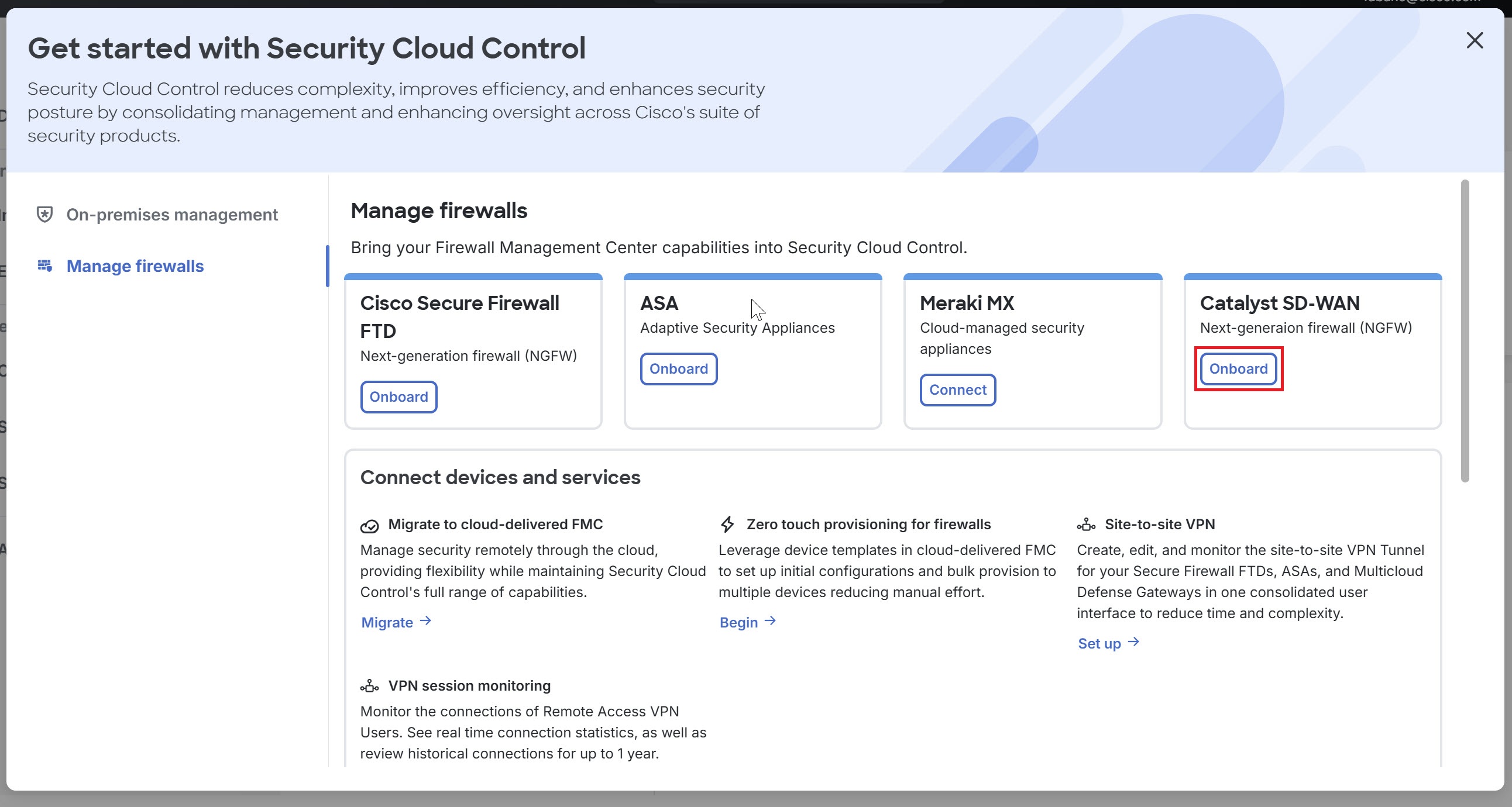
Step 3 | Alternatively, you can use the Get started with Security Cloud Control interface to onboard Catalyst SD-WAN Manager.
|
Step 4 | From the Select Organization drop-down list, choose an organization. The list of organizations displayed in the drop-down depends on the region where Security Cloud Control is deployed. |
Step 5 | In the Create label field, enter the desired label and click Connect. After you onboard the device to Security Cloud Control, the system applies labels. You can use these labels to group devices and filter them on the Security Devices page. |
Step 6 | Verify the details on the Catalyst SD-WAN Manager you are onboarding, and then click Close. In the Services page, the Catalyst SD-WAN displays the onboarded manager. |
 icon at the top-right corner of the
  .
.
After a successful onboarding, these details are displayed in Security Cloud Control:
-
All security objects, security profiles, and NGFW policies. The system displays these imported policies in .
-
Secure Router devices and their running configuration.
What to do next: In the Management pane, click Devices to see the onboarded Secure Router devices.