Enable Splunk Federated Search Integration with Cisco Security Analytics and Logging
Generate a secure access token that authenticates and authorizes interactions between the Splunk Cloud Platform and the Cisco Security Analytics and Logging service for data access.
Use this procedure to generate the access token that can be copied and shared with the Splunk administrator to enable access to Cisco Security Analytics and Logging data. The secure access token is automatically generated and is used to authenticate and authorize interactions between the Splunk Cloud Platform and the Cisco Security Analytics and Logging service. These tokens are generated per tenant and can be renewed manually.
Procedure
Step 1 | From the left pane, choose . | ||
Step 2 | Under the Splunk Federated Search tab, review the preintegration details and click Begin integration. 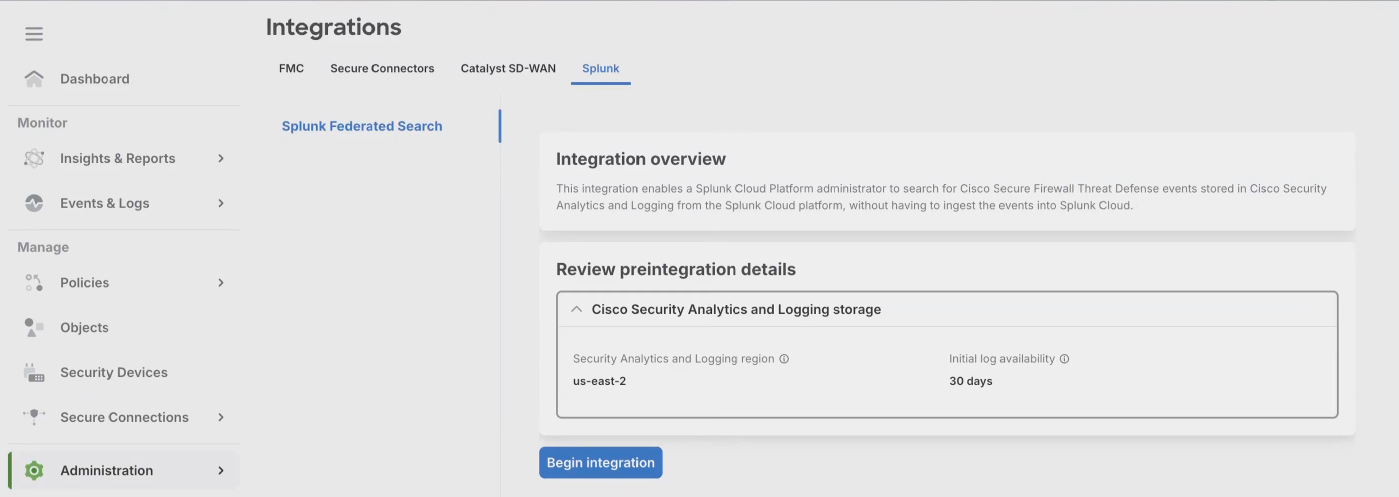 The initial log availability is up to 30 days, that is, up to 30 days of firewall event data is available for Splunk Federated Search.
You can click Cancel integration to cancel the integration at this stage. No changes will be made to your Cisco Security Analytics and Logging environment and access will not be granted to Splunk Cloud Platform if you cancel the integration. | ||
Step 3 | After you see the Configuration successful message, click Generate token. If you see the Configuration failed message, click Retry setup. | ||
Step 4 | From the Splunk Federated Search access token section, copy the access token and share it with the Splunk administrator. 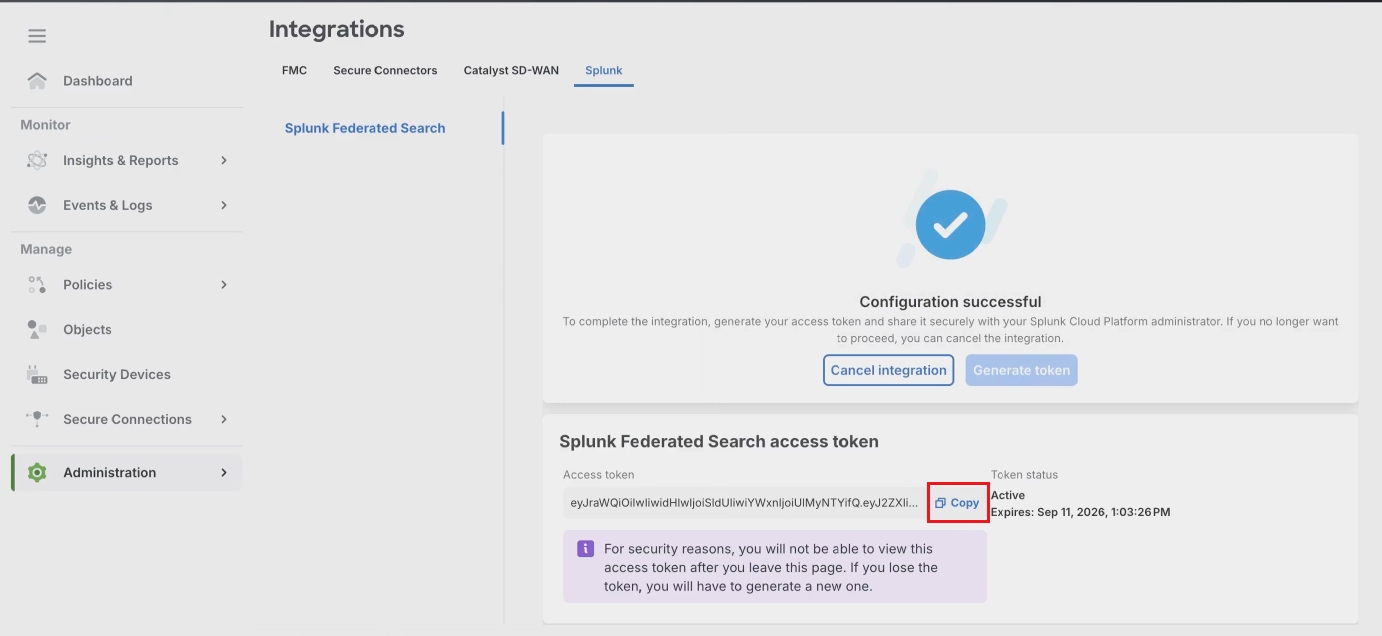 This access token is valid for 7 days (168 hours) from the time it is generated. The Splunk administrator must create the dataset before the access token expires.
|
You have successfully generated an access token that enables Splunk administrator access to Cisco Security Analytics and Logging data through the Splunk Cloud Platform integration.
What to do next
Follow the steps in Splunk Federated Search for Cisco Analytics and Logging (SAL) - Splunk Side to:
-
Define a Cisco Security Analytics and Logging dataset.
-
Set up a Cisco Security Analytics and Logging dataset.
-
Give your users role-based access control of Cisco Security Analytics and Logging datasets.